Precondition –
- Users have RL access
- User can update status to Ready for Scheduling
- Users have all info for pledge break and parent record (if needed)
Action | Steps |
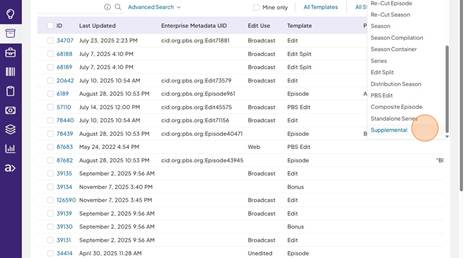
1. User navigates to Catalog Items and then Click 'Create New Catalog Item Record' (+ Icon) |
|
2. Click "Supplemental" |
|
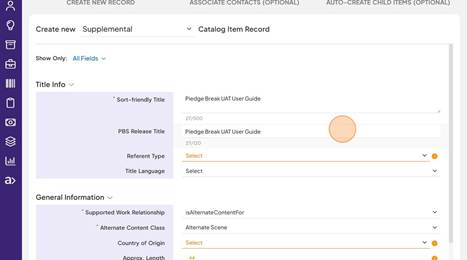
3. Fill out Sort-Friendly Title and PBS Release Title fields. |
|
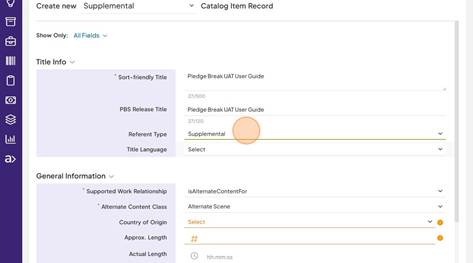
4. Select the "Supplemental" option for Referent Type field. |
|
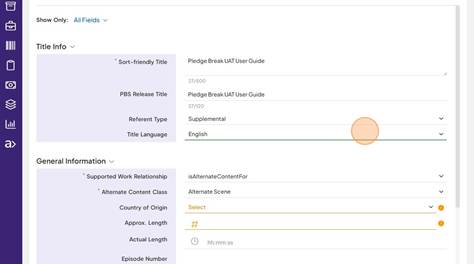
5. Select the "English" option for Title Language field. |
|
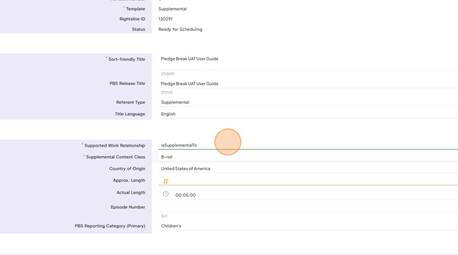
6. Select the "isSupplementalTo" or "isPromotionFor" option for Supported Work Relationship field.
|
|
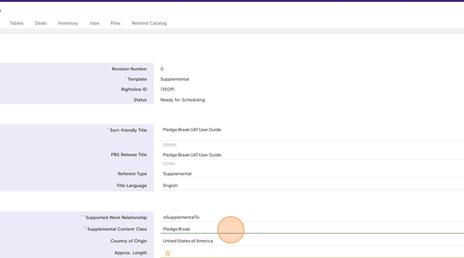
7. Select the "Pledge Break" option. |
|
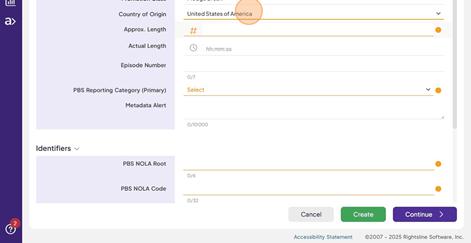
8. Select Country of Origin. |
|
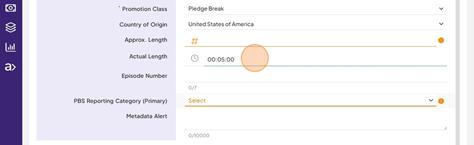
9. Fill out Actual Length field. |
|
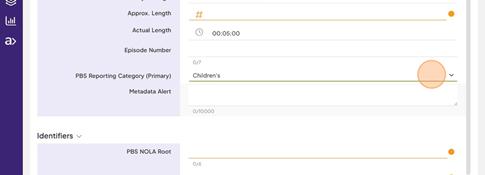
10. Select the PBS Reporting Category (Primary). |
|
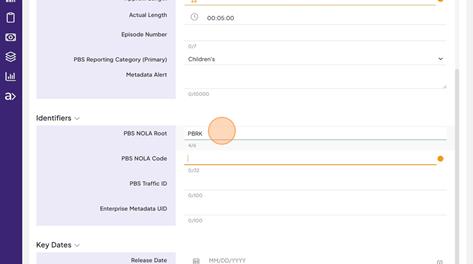
11. Enter "PBRK" for PBS NOLA Root field and PBS NOLA Code as needed . |
|
12. Click "Continue" |
|
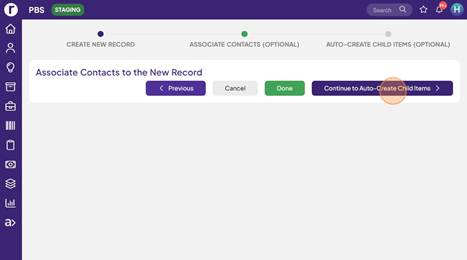
13. Click "Continue to Auto-Create Child Items" |
|
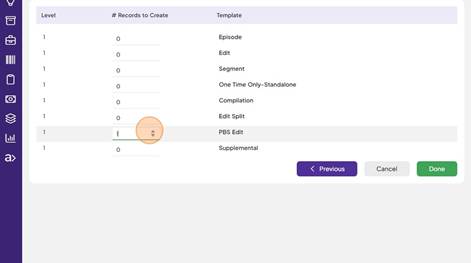
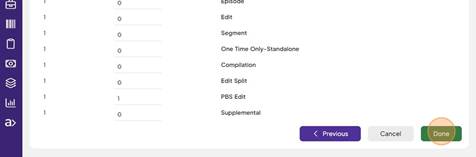
14. Enter number of PBS Edit to create for the Pledge Break. |
|
15. Click "Done" |
|
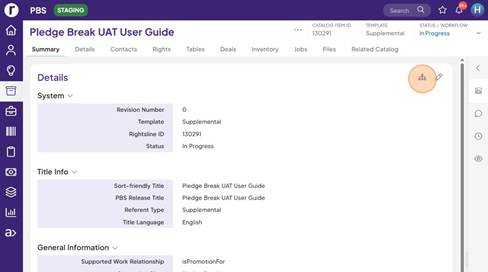
16. Click 'Sync Fields Down Catalog Hierarchy' icon. |
|
17. Click "Sync All Fields" |
|
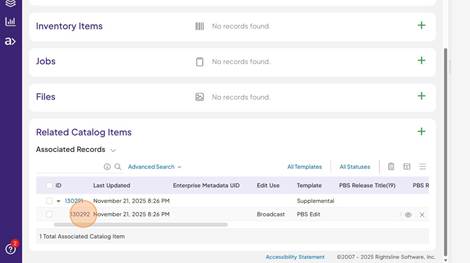
18. Open PBS Edit from Related Catalog Items section. |
|
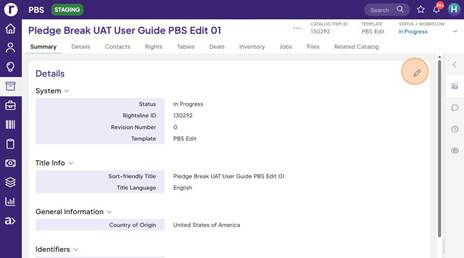
19. Click Edit Details. |
|
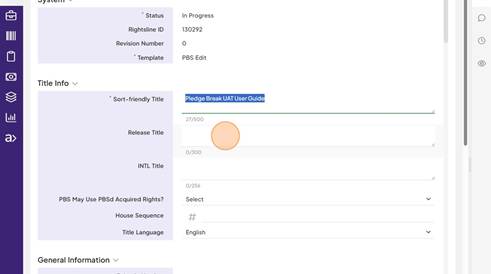
20.Fill out Sort-Friendly Title and Release Title fields. |
|
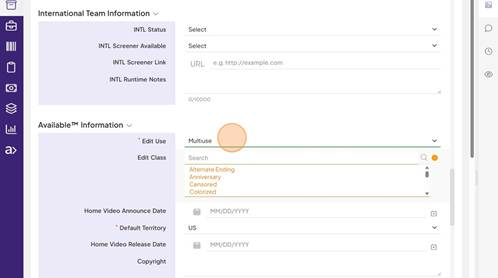
21. Select the "Multiuse" option for Edit Use field. |
|
22. Select the "Pledge" option for Edit Class field. |
|
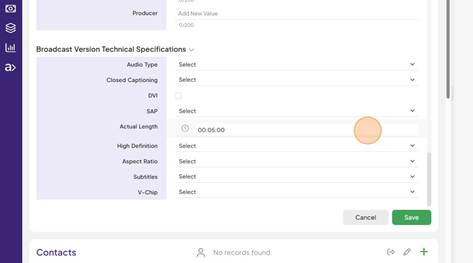
23. Verify Actual Length is filled out correctly. |
|
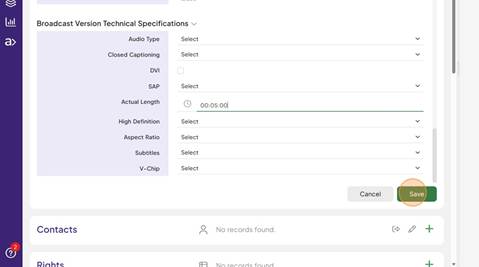
24. Click "Save" |
|
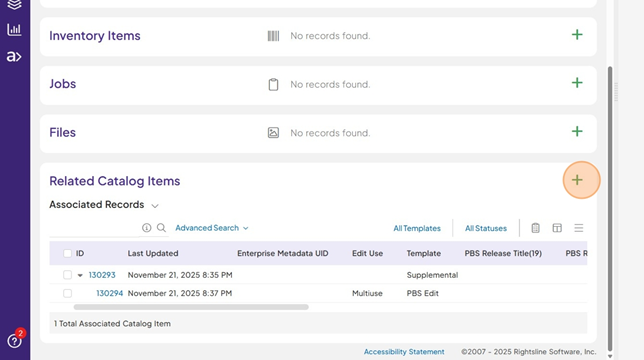
| 25. Click Add Association icon from Pledge Break record’s Related Catalog Items section.
|  |
| 26. Select the "Parent" option. | 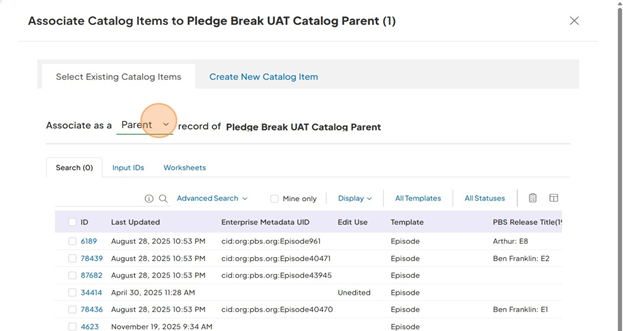 |
| 27. Search for Parent Catalog record. | 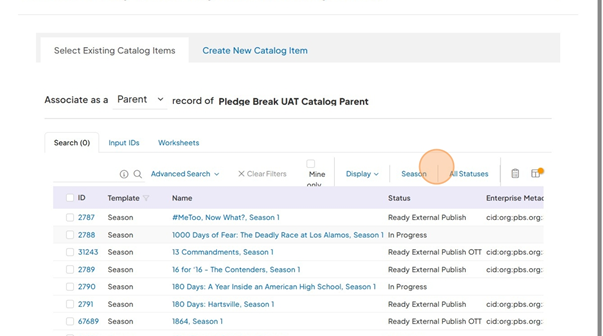 |
| 28. Click checkbox to select the parent catalog. | 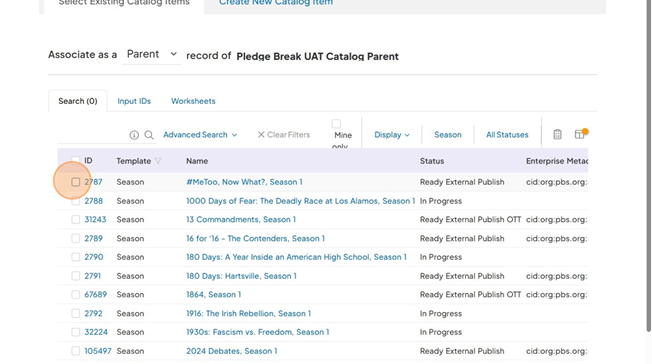 |
| 29. Click ‘Save’. | 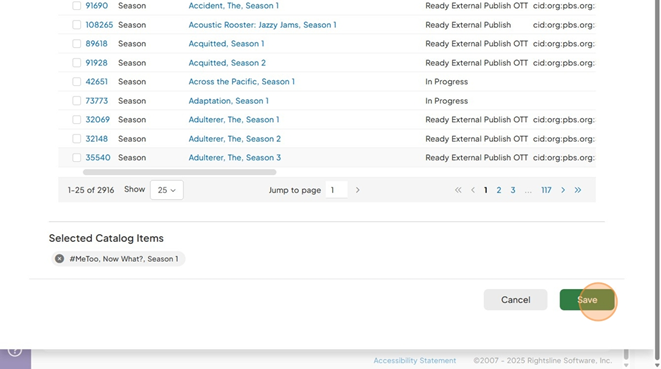 |
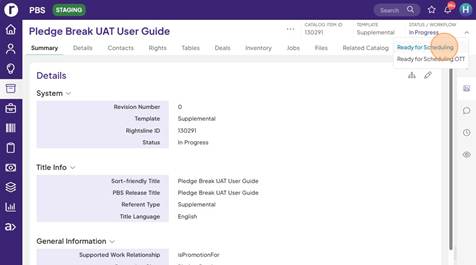
30. Update Supplemental status to "Ready for Scheduling" |
|
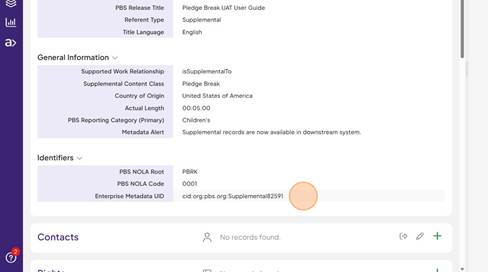
31. Metadata Alert is populated that the records are now available in downstream system.
Info – In BV these are created as episodes . |
|